Questing & world bosses
Face the Forge-Warden of Ispar in the Empyrean Vault or the Unbound Queen beneath the Sunken Lyceum. Bael’Zharon appears on the world map every seven hours, with rewards for players who land a hit.
Asheron’s Call · The portals remain open

Find your world. Rediscover a quest. Step back into Dereth.
Find an item or quest
Music from Astralis Nova
Darktide Megamix
Ready when you are. Press play.
Newest addition to AC Worlds
Start in Holtburg and explore end-of-retail Dereth with new quests, dungeons, creatures and gear. Hollowtide is a free, fan-run ACE world with its own browser and desktop clients.
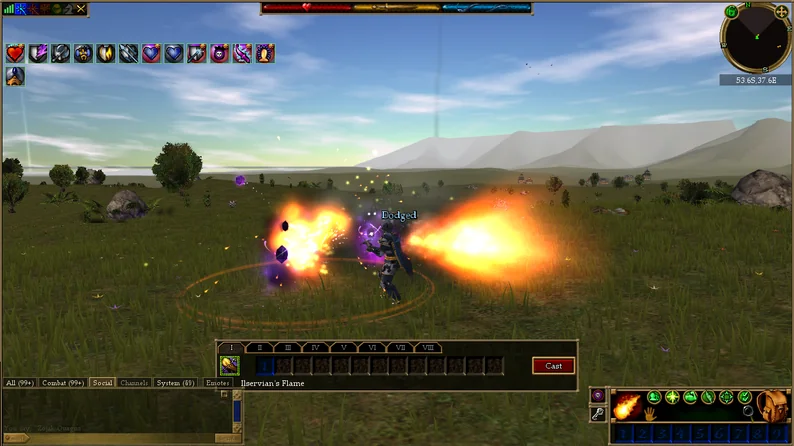
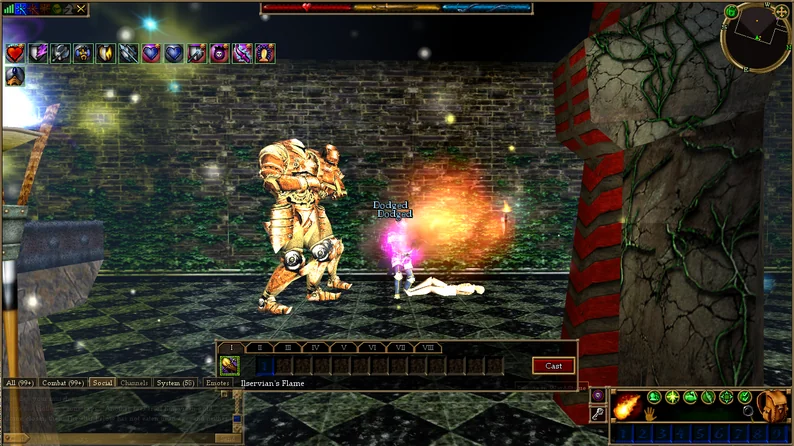
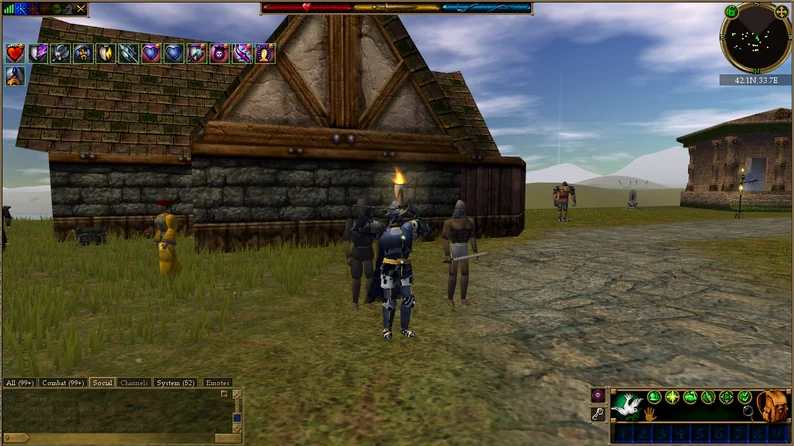
Screenshots by Hollowtide developer LumpyButt33 ↗. Select a screenshot to view it at full size.
Face the Forge-Warden of Ispar in the Empyrean Vault or the Unbound Queen beneath the Sunken Lyceum. Bael’Zharon appears on the world map every seven hours, with rewards for players who land a hit.
Hollowtide features an arena and a seasonal player-killer ladder with titles. The developer’s October browser update introduced protection from other players until level 5.
The VTank-style assistant handles combat, buffing, healing, looting and routes. It can read existing VTank loot profiles and navigation routes, and GoArrow-style map arrows help you find your way.
Look next to the lower-right UI panel for the built-in assistant. On corpses and chests, use Loot All or select multiple items. Click a player’s name in chat to send a tell, invite them, or add them as a friend.
If the Academy is offered during character creation, take it to practice combat, equipping gear, and casting spells. The classic AC visual guide explains the original panels. Hollowtide’s layout and shortcuts can differ.
Use a current browser and a keyboard and mouse. Pick a name and a starting class: Soldier, War Mage, Bow Hunter or Life Caster. A gold arrow leads toward your first hunt. Use Keep your character to set a password so you can return on another computer or switch to the desktop app.
Explore the Risen Shelf and look for Wardenforged Plate, Viridian Arms and Serpent Arms. The client adds reflective water, moving grass and trees, and new spell effects. Seasonal festivals bring costumes and decorations to Dereth. The developer’s Anniversary and Night Club update ↗ covers the return of two original live events.
Hollowtide allows multiboxing and automation. Its rules prohibit exploits and real-money trading. The server is in early access and the developer says a reset is possible if needed. Check the official client page for the current rules and release notes.
The free desktop app for Windows, macOS and Linux uses the same world and characters. It offers longer draw distance and needs the original Asheron’s Call data files. Hollowtide’s official About page links to its Discord for news, rules and help.
Developer updates: Gameplay and desktop tools ↗
Quest & custom content database
Find quests, loot and custom content. Choose a server to narrow the search.
Search community archives. Retail and custom-server content can differ.
Enter a term to target every source.
Saved server-specific guides, not a complete live wiki. Use the server and content filters above; current server instructions take priority.
Try a Conquest scan: · · ·
Server owners control their custom content and may change it without notice. Treat the linked server wiki or Discord as the final authority. Records marked “community source” have not been independently verified by Astralis Nova.
Find your home in Dereth
Player worlds, with test-only servers excluded. A regular world may still be temporarily offline. Character counts can include bots and multiple accounts.
Only checked websites and wikis are shown. Unverified destinations are omitted; links can change after their check date.
Each game world may have its own Discord server. Channels are the chat rooms inside that community.
Search Discord’s public server directory ↗ for the world’s name and “Asheron’s Call.” Not every community is listed. If you cannot find it, check the world’s website or ask a server admin or fellow player for its current public invite.
Already a member? Use Create Invite beside a channel if your role permits it, then copy the invite. Ask an admin for a public, non-expiring invite where supported.
After joining, follow the welcome and rules instructions, then look for help, quests or announcements channels. You can only access channels your role permits; copying a channel address does not replace an invite.
Server details come from the community-maintained AC server list, TreeStats and AC Worlds’ own verified listings. Recent character reports are not guaranteed to represent unique people. A stale reading remains visibly marked instead of pretending to be live.
These worlds are independently operated community servers. Astralis Nova does not own, rank or officially endorse them. Always read a server’s rules and community information before connecting.
ACEmulator project · Community server list · TreeStats directory
Equip your journey
126 archived plugin and tool listings. Check publisher requirements and your server’s rules before installing.
126 entries: 121 from ACCPP's plugin archive plus 5 legacy discoveries, indexed September 1, 2026. A snapshot, not every plugin ever created. Listed versions are not guaranteed latest; release dates and compatibility are unverified.
Search “legacy” to find the added historical plugins. Legacy — compatibility unverified: project listings are preserved references, not tested downloads or confirmation that they work with current Decal, ACE, or Conquest. Check requirements and your server’s rules before installing.
Review publisher instructions and server automation rules before installing. An archive listing is not a safety or compatibility endorsement. ACCompanion is a related standalone tool, not a Decal plugin.
Dereth on screen
Guides, gameplay, lore and old-school Darktide memories from the AC community.
Choose “Watch here” to play a video, or open it on YouTube. If a player is unavailable, use its YouTube link. Older footage and guides may differ from your server.

A walkthrough of the client, updates, launcher and Decal. Follow your chosen world’s instructions for custom files.
By Mature Minded Gamers · YouTube

A starting point for getting your bearings and returning to the game.
By ABGFenix Gaming · YouTube


Explore the February 2000 story update, Atlan weapons and more in this AC lore episode.
By Just Playing the Classics · YouTube

Newbie gameplay without commentary from the classic-era Seedsow shard.
By Just Playing the Classics · YouTube
Videos remain hosted by their creators. Creator links open their channels. Have an AC video or media source to share? Suggest it in the guestbook.
Maps, lore & community
Community tools, maps and preserved knowledge. These links open external sites; their content is not imported into our quest search. Sources reviewed September 1, 2026.
More places to research Dereth, alongside ACPedia and the retail and Conquest Fandom links above. These are external guides, not additional indexed quest results. A working guide index does not guarantee every linked page is complete.
Item or quest: use the source-search links above; choose Conquest for Conquest-specific content and cross-check retail references. Character build: try the planner. Lost in a dungeon: open the map tools. Plugin trouble: check publisher instructions and dated community discussions.
Retail references, emulator data and custom-server content are not interchangeable. Downloads and automation tools remain subject to compatibility checks and your server’s rules.
First journey to Dereth
Client → End-of-Retail files → launcher. Get the game working before adding plugins.
Download in order from the sources linked by ACEmulator. We do not repackage installers.
ac1install.exe installs the original game client. The Internet Archive copy preserves Turbine’s installer.Download ac1install.exe ↗On MEGA, choose the download arrow—not “Save to MEGA.” Scan downloads normally and never reuse an important password on an emulator server.
The original Asheron’s Call client and the common community launchers are Windows software. Keep the game in a normal writable folder such as C:\Turbine\Asheron's Call.
Follow ACEmulator’s official How to Play page for its current approved client sources. Run the installer using its default location unless you have a reason to change it.
The official guide provides the current End-of-Retail client-file package. Copy its four files into the AC folder and choose Replace when prompted.
Use the launcher linked by ACEmulator. In Browse Servers, choose a public world—or copy an address from AC Worlds and add it manually in Advanced View.
Most ACE worlds create an account on the first successful login. Choose a unique username and password; do not reuse your email, banking, work, or other important password.
Select the world, enter the new credentials and press Launch. Read that server’s website or Discord first because account limits, botting rules and custom files vary.
ACE worlds generally use the End-of-Retail client described in the official ACEmulator guide. Some GDLE/classic-era or heavily customized worlds require their own DAT files.
Never overwrite your working client blindly. Make a separate copy of the complete AC folder for a classic or custom world, then follow that world’s own website or Discord instructions.
Decal enables community plugins, maps and utilities, but it is not necessary for a first clean launch. Get the client working before installing Decal so troubleshooting has fewer moving pieces.
FullScreen=True to FullScreen=False in UserPreferences.ini.ACEmulator is an open-source community project rebuilding Asheron’s Call. Its independently operated servers are not official Turbine or WB Games servers. AC Worlds brings ACE, GDLE and other community worlds, guides and tools together.
Around the lifestone
Found a broken link, missing quest or something we could improve? Leave a note—or just say hello.
Loading visitor messages…